

Bid Adjustments on FatAds: How to Launch
Published Mar 31, 2026 by FatAds team
Not all traffic performs equally, even within the same campaign. With Bid Adjustments (or Micro bidding), you can set bids for specific traffic parameters and optimize performance inside a single campaign.
Below is a full guide based on the Bid Adjustments section shown in the campaign setup screen.
What Are Bid Adjustments?
Bid Adjustments is an advanced advertising feature that allows advertisers to set specific bids for individual traffic parameters (like site ID, device type, country, or OS) within a single campaign.
It optimizes ROI by enabling real-time bid adjustments, increasing bids for high-performing traffic and lowering bids for less performing sources. There are 10+ parameters available: publisher, site, device, OS, city, carrier, connection type, ISP, weekday, hour, IP, creative, and more.
Instead of running multiple campaigns for each segment, you manage everything inside one campaign structure.
With bid adjustments, you can, for instance, increase bid for iOS traffic and decrease bid for Android, lower bid for underperforming GEOs, etc. This gives you reduced spend on inefficient segments and higher ROI without duplicating campaigns.
How to Set Up Bid Adjustments on FatAds
Step 1: Create a сampaign
Choose between Push or Pop advertising formats as usual.
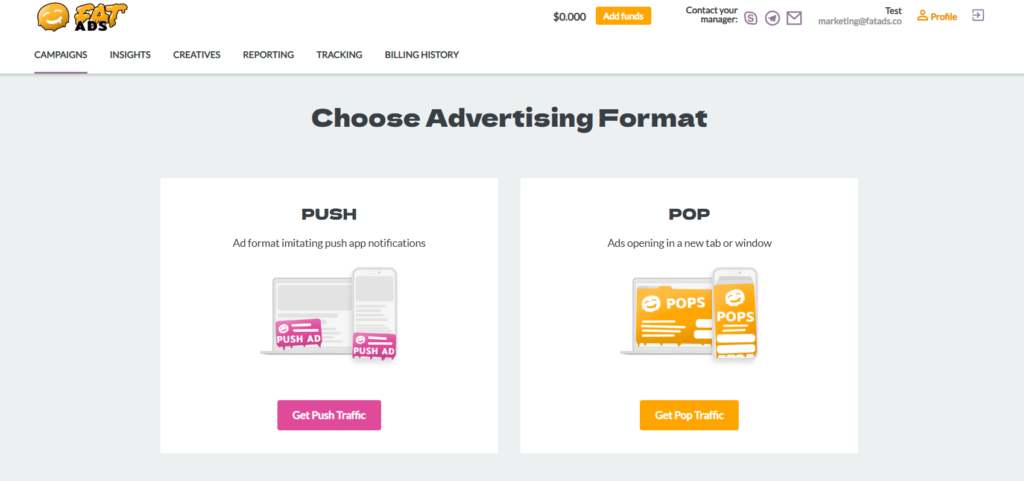
Step 2: Scroll to “Bid Adjustments” Section
In the lower part of the campaign creation page, you will see “Bid Adjustments” and below it an input field. This is where you define your specific bidding rules.
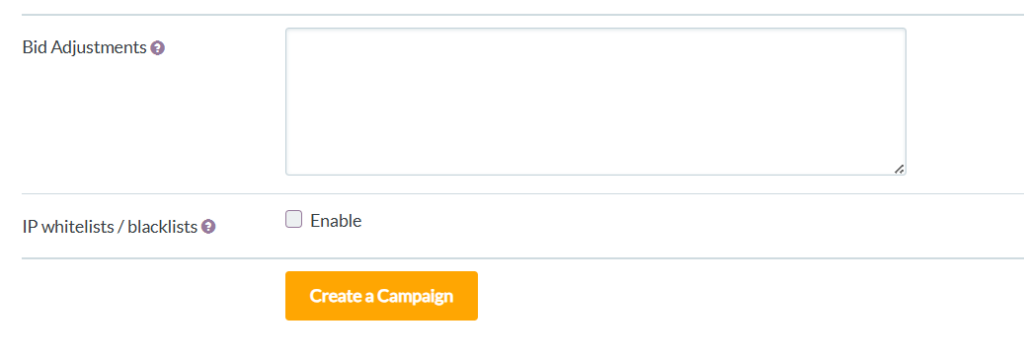
Step 3: Add Bid Adjustments rules
Inside the Bid Adjustments field, you can specify adjustments for device type, country, operating system, and other available targeting parameters.
Here are the parameters for Bid Adjustments on FatAds:
| Parameter | Value | Example |
| sub_list_id | enter an Subscribers List ID, e.g. 1197 | sub_list_id:1197:-0.2 |
| publisher_id | enter a publisher ID, e.g. 48965 | publisher_id:48965:+1 |
| site_id | enter a site ID, e.g. 41563 | site_id:41563:/0.5 |
| carrier | enter a carrier, e.g. SFR | carrier:SFR:+0.4 |
| device | mobile, computer, tablet | device:mobile:*0.4 |
| connection_type | enter a connection type: wifi, cellular, ethernet | connection_type:wifi:-0.1 |
| ISP | enter an Internet provider, e.g. Orange | isp:orange:+0.1 |
| OS | enter an operating system, e.g. android 6 | os:android 6:-0.9 |
| weekday | MO, TU, WE, TH, FR, SA, SU | weekday:fr:*0.4 |
| hour | put the number from 0 to 23 | hour:15:-0.3 |
| ip | enter an IP, e.g. 151.101.65.121 | ip:151.101.65.121:-0.7 |
| region / city / zip | region / city / zip | region:ca:+0.1 city:Chicago:-0.5 zip:90009:*0.2 |
| creative_id | enter a creative id, e.g. 38746 | creative_id:38746:+0.7 |
You define how much you want to increase or decrease the bid for each segment.
Step 4: Launch the Campaign
Click “Create a Campaign”. Once launched, your chosen bid stays the same as the default starting point. The system automatically applies your bid changes to specific segments (like device, GEO, or site ID). If a segment performs well, your higher bid helps you win more traffic.
Conclusion
Bid Adjustments give you precise, hands-on control over your campaign performance. With micro bidding, you can increase bids for segments that convert and decrease bids for those that don’t – all inside one campaign. If you prefer specific optimization and data-driven scaling, Bid Adjustments let you optimize traffic exactly the way you need!
Learn more about FatAds features:
1. Optimization Booster: How to launch for the highest-converting traffic?
2. CPA Limit: How to Use Smart Protection Tool for overspending?
3. Bid Adjustments: How set bids for specific traffic parameters and optimize performance for a single campaign?